Tuesday, March 26, 2013

How to Send SMS using google || Google free sms


Hi dear Reader
   There are many features of Gmail,which we don't know. Many people create account for free SMS daily but I feel happy to telling Google provide free SMS  per day. I will Telling you about google unbelievable and amazing feature of Free SMS..I sure you like my this post so much..

Learn How To send FREE SMS..
1)Sigin to your Gmail Account.


2)Now click on the "Settings".

3)Click on the "Labs" option

4)Now you will find lab features:-

"SMS (text messaging) in Chat" Just enable both of the features.

After enabling these features reload your account or you can also sign out and resign.
Now you will see "Chat and SMS" option in the Chat bar
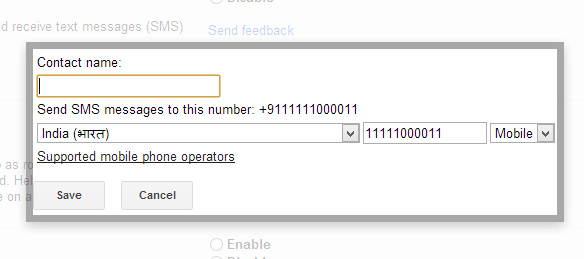
4) just type the number in it and hit "Enter"
It will prompt for contact name. operator.

5) fill the information click Save to begin your chat with your friends


Please note: In a day you can send only 48 SMS. if the person replies for your sms then you can gain one new sms for every replies from the mobile.
Hey Guys If You Like my Blog please Follow that....  Enjoy Guys! and don't forget to post your comments...


Sunday, March 24, 2013

How to Backup blogger template

1. LogIn to your Blogger Account.
2. Click on your blog name.
 You can see overview of your blog.

 3. Click on "Template".

 4. Then Click on "Backup / Restore" button.( top right corner)\
"Backup / Restore" window will appear.
click "Download full template" to download it....

How to install blogger template

             In this tutorial i am going to show you how to install blogger template in the new updated version of the blogger.just simple follow the step and install a blogger template in updated blogger interface.

1. LogIn to your Blogger Account.
2. Click on your blog name.
 You can see overview of your blog.

 3. Click on "Template".

 4. Then Click on "Backup / Restore" button.( top right corner)\
"Backup / Restore" window will appear.
 5. Browse your template file (XML file) and click open.
6. Finally click on "Upload" button.
You are done.
Go to "Layout" to rearrange your widgets positions correctly.

warning: before changing the template make sure that you have your default template backup. which will be useful during the template goes error..
Tutorial for default template backup for Bloggers page
download the blogger template from various sites which are free of cost....


Sunday, March 3, 2013

Free sms all over the world


             Hello every one through this you can send sms all over the world. This is an free sms service that helps you to send the messages to your friends and families online easily.
             due to the government restrictions some message may bot be delivered and some times it may take more time to deliver the message.

Friday, March 1, 2013

Tutorial for Install Windows from USB Flash drive - WinToFlash Guide

            WinToFlash starts a wizard that will help pull over the contents of a windows installation CD or DVD and prep the USB drive to become a bootable replacement for the optical drive. It can also do this with your LiveCD.
You don't have to worry about scratches on the disc or misplacing your original media discs once you transfer their contents to the flash drive. The optical drive is quickly becoming a thing of the past, especially in office environments, as media is shifted to the cloud.

 Steps to download and install WinToFlash
Step 1:
Download WinToFlash here http://wintoflash.com/download/en/

Step 2:
Extract the zip file, then double click on WinToFlash.exe
Step 3:
Click Accept button.

Step 4:
On the main screen, click on the Window Setup Transfer Wizard. This will bring you to the wizard mode where it automates (almost) the whole process for you.
Step 5:
For now, we will use wizard mode instead of advanced mode,  You can ignore that (if you are not into tweaking) and click Next to proceed.
Step 6:
Point the Windows file path to the Windows Installer DVD directory.(the image of the operating system will be extracted and set the path to that folder)

Point the USB drive to the USB directory.

Step 7;
Click Next button...

Step 8:
Select "I Accepted the terms of the license agreement" then click Continue...
Step 9:
Preparing your USB drive.(Warning! Formatting will erase ALL DATA on target disk). . Now click ok
Step 10:
Please wait while WinToFlash transferring Windows setup to flash drive

Step 11:
Once you see the following message, the whole process is done. You can now boot Windows 7 from the USB drive.
now click exit


Some computers require you to change the Bootup setting in the BIOS before you can boot from USB.follow the link to learn about it
Through this tutorial you can install all versions of windows operating system from usb flash drive(pen drive)

Tag:Tutorial for Install Windows 8 from USB Flash drive (pen drive), Tutorial for Install Windows 7 from USB Flash drive (pen drive),Tutorial for Install Windows XP from USB Flash drive (pen drive).

Saturday, September 29, 2012

ICC T20 World Cup 2012 Schedule, Fixtures, Time Table,live streaming,Live Scores,


ICC T20 World Cup 2012 Schedule, Fixtures, Time Table,live streaming,Live Scores,online TV


           The ICC World Twenty20 2012 is a 20/20 cricket tournament scheduled to take place in Sri Lanka in September-October 2012. It will be the forth World Twenty20 cricket series. The ICC World Twenty20 2012 will be contested by 12 teams which have been 10 Test teams and two qualifiers (Ireland & Afghanistan) and divided into four groups are A, B, C and D. Final will be played at R Premadasa Stadium, Colombo on October 07, 2012. Explore live scores and all information of World T20 2012.


Group A - England (A1), India (A2) and Afghanistan
Group B - Australia (B1), West Indies (B2) and Ireland
Group C - Sri Lanka C1), South Africa (C2) and Zimbabwe
Group D - Pakistan (D1), New Zealand (D2) and Bangladesh


Super Eights:

Thursday, September 27th 2012                                                                      

Sri Lanka beat New Zealand in a Super Overrecap | scorecard
West Indies beat England by 15 runsrecap | scorecard

Friday, September 28th 2012
Pakistan beat South Africa by 2 wicketsrecap | scorecard
Australia beat India by 9 wicketsrecap | scorecard

Saturday, September 29th 2012
England beat New Zealand by 6 wicketsrecap | scorecard
Sri Lanka West Indies14.00 GMT | 19.30 LocalPallekele International Cricket Stadium

Sunday, September 30th 2012
Australia vs South Africa10.00 GMT | 15.30 LocalR Premadasa Stadium, Colombo
India vs Pakistan14.00 GMT | 19.30 LocalR Premadasa Stadium, Colombo

Monday, October 1st 2012
New Zealand vs West Indies10.00 GMT | 15.30 LocalPallekele International Cricket Stadium
Sri Lanka vs England14.00 GMT | 19.30 LocalPallekele International Cricket Stadium

Tuesday, October 2nd 2012
Australia vs Pakistan10.00 GMT | 15.30 LocalR Premadasa Stadium, Colombo
India vs South Africa14.00 GMT | 19.30 LocalR Premadasa Stadium, Colombo

Semi Finals

Thursday, October 4th 2012
Winner S8 Group 1 v Runner Up S8 Group 214:30 GMT | 20:00 localR Premadasa Stadium, Colombo
Friday, October 5th 2012
Winner S8 Group 2 v Runner Up S8 Group 114:30 GMT | 20:00 localR Premadasa Stadium, Colombo

2012 t20 World Cup Final
Sunday, October 7th 2012

Winner Semi Final 1 v Winner Semi Final 214:30 GMT | 20:00 localR Premadasa Stadium, Colombo


                                                                                        -live cricket embeded code

 
Animated Social Gadget - Blogger And Wordpress Tips